top of page

Need Audacity training?
How to create audio files in Audacity
Normalize volume
Follow these steps to normalize the volume throughout a recording:
Step 1
Record audio or copy and paste two recordings to create a conversation between two people. If sections of an audio file are different volumes, you can normalize the volume throughout the recording to make the volume a more even level.

Step 2
Highlight the section of audio you want to normalize, or select Control+A to select an entire audio track.

Step 3
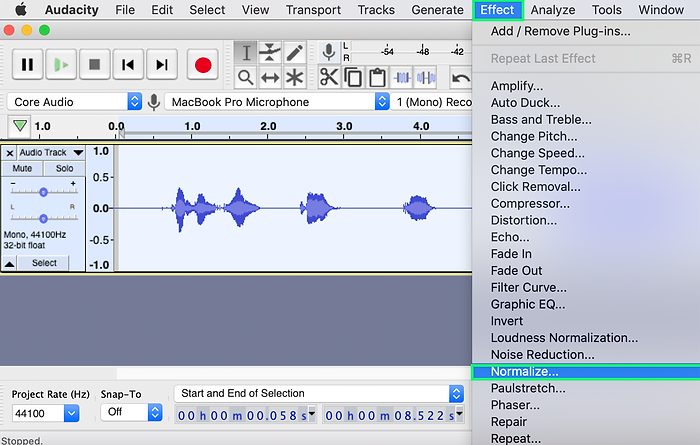
Select Effect > Normalize.
The Normalize window opens.
Step 4
Select the first two boxes. Adjust the dB and select Preview to listen to a few seconds of audio.
Once you have found the sound quality you like, select OK.

Step 5
The audio will be normalized within the parameters of the settings you chose.

Listen to a sample of audio before normalizing.
Normalize_before
00:00 / 00:08
Listen to a sample of audio after normalizing.
Normalize_after
00:00 / 00:08
bottom of page